Showing posts with label Blackboard Collaborate. Show all posts

Friday, February 28, 2014

Be the Best Web Conferencer You Can Be! Tips for Best Practices

If you've been using Web conferencing software for a while, you probably already have a sense of
what is good practice with the tools. "Best practice" is more difficult to define and depends on context: your mileage may vary from mine. As instructors, we rely on intuition rather than dogma to develop best practice and what we know is more implicit than explicit. I've done a bit of research (so, hopefully, you won't have to) to try to locate sources where best practices in Web conferencing for instruction have been communicated and explained. There is also a significant amount of knowledge chronicled in other posts on this blog, so this will definitely NOT be the last word. Use it as a starting point.

Ms. Giovanna Badia and Mrs. April Colosimo presented at the 2013 ASEE (American Society for Engineering Education) Conference on "Best Practices for Engaging Users in a Web Conferencing Environment". They emphasize the need to 1) Introduce and Orient; 2) Inform; 3) Reinforce Active Learning and Feedback; 4) Humanize the Environment; 5) Close and Follow-Up. Among their tips: "There are advantages and disadvantages to maximizing the screen while displaying the content. For instance, the chat box will no longer be visible to the presenter. However, it will also mean that the names of registrants will not be seen in the resulting video. It can be a challenge to devote attention to both presenting and scanning for questions or comments, so it is advisable to have a second person, whenever possible, to monitor and respond to chats...." "Just as with face-to-face sessions, you can present case studies or prompt students for topic suggestions if illustrating search tools. It can be distracting for participants to move back and forth from applications to the web conferencing software so it may require more planning in advance. Try to slow down when demonstrating, since there may be a delay between what the instructor shows and what participants see on their screens...." "Use questioning as an active learning technique to involve everyone via audio, chat, or with the use of a whiteboard. Be patient and wait for responses. Decide how to manage discussions beforehand, with participants raising their hands or waiting for their turn to type or speak. Take time to reflect on comments and ask participants to elaborate. If you feel relaxed enough, you can prompt specific individuals by name to contribute to a discussion but it has to be done sensitively since there are no visual cues to indicate whether or not someone is comfortable responding. The whiteboard can be
a tool for engaging participants in the design of a concept map, brainstorming ideas, and producing a list of key terms...."

Learning Solutions Magazine  posted an article recently by Darlene Christopher entitled, "Best Practices for Polling in Web Conferences". Her suggestions for designing poll questions: 1) Keep it short; 2) Avoid double-barreled questions; 3) Eliminate acronyms or unclear language; 4) Avoid leading or biased questions. When formulating responses, she recommends: 1) Use plain language; 2) Limit answer choices; 3) Use mutually exclusive responses; 4) Use number increments in equal amounts; 5) Include options for outliers; Include a "don't know" option if  appropriate. The article includes many practical suggestions for rehearsing, anonymous polling, and broadcasting poll results.

Jozianne Mestas at the University of Colorado, Denver, has published "Best Practices for Web Conferencing With Adobe Connect Pro." The article provides advice for PowerPoint Preparation: "be
conscientious of the font sizes you select to ensure that your web participants will be able to read your slides. The same principle applies for using intricate pictures, graphics and non-standard fonts. Since Adobe Connect Pro uses its own reader to view the presentation, in order to make sure all participates can view the content, it is best to use simple fonts, graphics, and animations." On Screen Share: "If you choose to utilize the screen share option, it is recommended that you use the screen
resolution of 1024x768 to ensure that your participants can see your screen without demanding too much computer network bandwidth." For audio: " I recommend limiting the number of open microphones at one time to minimize the possible confusion caused by multiple individuals trying to
talk all at once."


Saint Leo University makes available its one-page "Web Conferencing Best Practices for Moderators" divided into 3 sections: 1) Before Session (test connectivity, check lighting and background objects, etc.); 2) During Session (use an ice breaker, speak clearly and at an even pace, etc.); and 3) After Session (follow up with meeting notes and next steps).

The Sloan Consortium has a presentation by Linda Macauley of Elizabethtown College entitled, "Best Practices in Using Interactive Web Conferencing for Online and Hybrid Courses". Linda's work has also appeared in Faculty Focus. Her tips can be divided into these categories: Getting Started; Classroom Management; and Troubleshooting and Technical Support. Getting Started: practice in Classroom Management: explain the icons; establish a protocol for speaking and asking questions; appoint students to be presenters; use yes/no buttons periodically. Troubleshooting and Technical Support: add the help number to every invitation; remind students about background noise; do periodic sound checks;schedule at least one test session with students; provide "how to join"
Add caption
instructions to students; post invitations where students will find them.

Sloan-C also archived a presentation by three Eastern Kentucky University professors - Paula Jones, Maryann Kolloff, and Fred Kolloff - entitled "Best Practices to Promote Learning Through Web Conferencing: Resources, Tools and Teaching Methods".  These three emphasize these best practices: 1) Prepare Content Beforehand; 2) Plan a Practice Session; 3) Have an Assistant on Hand. They also list several "Before the first meeting" tips, e.g., plan for accessibility needs, share a whiteboard with the number for technical support early in the session, log in 15-20 minutes early. There is a another list of tips to follow during the session: make sure that student interactions are required every few minutes;
plan for breaks; close items when finished with them.


Friday, January 17, 2014

The Web Conferencing Skill Set

"Ah, mastery... what a profoundly satisfying feeling when one finally gets on top of a new set of skills... and then sees the light under the new door these new skills can open, even as another door is closing." - Gail Sheehy

We've spent a lot of time in this blog discussing the tools of Web conferencing and some of the practices which have proved most effective in using those tools. As with any tool set, the level of skills in the use of these tools is a significant variable in their successful implementation. Instructors and students come to the virtual classroom with different skill levels, personalities, and experiences, all of which play a role in determining the learning climate.

Valaitas et. al. studied instructors who used Web conferencing to teach health sciences. By identifying personality types in their instructor sample - "Pragmatists, Positive Communicators, and Shy Enthusiasts" - they were able to differentiate approaches to the use of and acquisition of skills in the tools of Web conferencing. The "positive communicators" in this group "strongly disagreed" with the statement "The application sharing tool is a bit confusing for participants and presenters" and "were not challenged by the application-sharing feature." By contrast, the "shy enthusiasts" preferred the "ability to interact online by responding to multiple-choice or open-ended questions." The "pragmatists" in this sample did not show a particular proclivity to any particular tool, although all three groups were generally positive about the technology. This suggests that skills and personality may be inter-related in this arena.

The "digital natives" in modern classrooms may not be quite so "native" in the Web conferencing environment. Kennedy et. al. report that only a third of students surveyed had used a Web conferencing tool; two-thirds had not. It's clearly not safe to assume that your students know this software and will be able to help you find your way around.

Matt Bower points out the need for and variability of skills in this environment in his three-semester study of Web conferencing used for instruction. He observed "four levels of online collaborative competencies... operational, interactional, managerial, and design." He also notes that "the relative importance of students and teachers possessing the different levels of competencies depended on the degree of interactivity in the learning processes." The instructors who designed into their lesson plans greater interactivity increased the potential for misuse of the tools and the need for competencies to manage the interaction, operate the tools, and interact successfully. "Firstly, there are several tools to master; secondly, different tools need to be selected depending on communication requirements; thirdly, the affordances of tools in combination requires consideration; and fourthly, decisions about how to use tools often need to be made in real time. Failure to understand one subtle feature of a tool or its use can have a crippling impact on the learning episode, amplifying the importance that users have developed technical and collaborative competencies...."

Monday, December 16, 2013

Web Conferencing Highlights of 2013

"Year's end is neither an end nor a beginning but a going on, with all the wisdom that experience can instill in us." - Hal Borland

Another year of Web conferencing in education has almost ended, and we've learned a lot from the many educators who use this technology to connect with students and colleagues around the world. Here's a sampling from the myriad posts, articles, and stories that added to our growing insights into the Confer classroom.

January: "Where the disabled are enabled" An inspiring story from Western University shows how hearing-impaired students in Martin Zinke-Allmang's "groundbreaking first-year Physics for the Life Sciences class" use Web conferencing - with the built-in closed captioning option - to get the class caption notes along with the PowerPoint slides of each lecture.

February: "40 Tips for Webinar Success" Ken Molay shared a free resource from AnyMeeting which you can still download here. As Ken says, "what is fun about the document is not the short reminders of steps to follow in planning, preparing, and producing a Webinar. They are nice little encapsulations of best practices. It’s the fact that each of the 40 tips includes a link to an article, blog post, or recording going into more detail on that subject."

March: "Reconsidering Online vs. In-Person Professional Meetings"Joshua Kim mused for Inside Higher Ed about the value of online meetings: "We travel to meetings for the people, not the content - and people are best experienced face-to face, not screen-to-screen.... We travel to professional meetings with the best of intentions of focusing on the event, and find ourselves pulled into putting out fires by e-mail and phone, working late into the night to stay on top of things.... Lately, I've been thinking that our understanding of how to plan and run a quality online professional meeting has advanced to the point where it makes sense to always consider this option when planning our own events."

April: "The Do's and Don'ts of Using Visuals in eLearning" Karla Gutierrez provides invaluable pointers for anyone trying to use visuals in an online class. "Images and visuals done incorrectly will cause harm rather than strengthen learning. But images incorporate and integrated into eLearning effectively, will bolster learning and lead to more student engagement and material retention." Karla practices what she preaches by using exemplary visuals and accompanying text.

May: "Blackboard Collaborate Brings Web Conferencing App to Android" T.H.E. Journal covered this significant milestone for Bb Collaborate: mobile Web conferencing for all major platforms (the iOS app was developed in 2012). "The new mobile version... allows users to participate in Collaborate conferences. Participants can chat, use two-way audio, use emoticons, answer survey questions, raise their hands, join breakout rooms, and view presentations, including annotations, images, shared applications, and shared desktops."

June: "A Case Study on the Adoption and Use of Synchronous Virtual Classrooms" From The Electronic Journal of e-Learning, this research article describes how faculty at the University of North Carolina (Wilmington) reacted to and adopted a Web conferencing application that was made available to them by the University.  Survey data provided information on what influenced faculty adoption, and interview data described instructional approaches used by these adopters. A "subset of features led to ... adoption and are used frequently,"  while "perceived ease of use and usefulness of the technology may impel its use." Administrators trying to promote technology usage will find this case study useful and illuminating: it indicates the decision factors and features faculty consider when opting to use or ignore technology for instruction. "Based on the results of this case study, administrators can promote the factors and features that influence decision making to adopt the tool. Based on the interviews in this case study, administrators can also describe the ways how other faculty are using these tools in their classroom, and how beneficial it can be if adopted."

July: "Pasadena City College Classified Staff Demo of CCC Confer" and "DeAnza College Tutoring Program Presentation" In keeping with the theme of the June study (above), our June highlights include two presentations by colleges in the CCC system who describe how they use CCC Confer to accomplish teaching and meeting goals and objectives. The users are the best judges of a tool's usefulness, and these two demonstrations are user-produced and user-focused.

August: "3 Ways Webconferencing is Transforming PD" Another contribution from T.H.E. Journal describes "video learning communities" and "communities of practice" that self-generate when Web conferencing is used for professional development, connecting educators and making it possible for them to meet anytime and any place to share ideas and teaching practices.

September: "CCC Confer: Presenter Checklist" Another user-generated video from the College of the Redwoods designed to show fellow presenters how to prepare to use CCC Confer effectively.

October: "Ten Ways Web Conferencing Works in Education" Although this is a self-reflecting link, it's based on the excellent work of Beth Gallob, who is properly cited. Looking for ways to make the most of online technology? Here's a list of features you'll find it hard to ignore.

November: "Synchronous Learning: Is there a future?" Here's another academic study of adoption and innovation, using survey data to determine the thought processes of students who were exposed to instruction delivered via Web conferencing. "Eighty-two percent agreed or strongly agreed that [the technology] was 'easy to learn' and 73 percent stated it was 'easy to use.'... Seventy-three percent agreed or strongly agreed they would recommend [Web conferencing] to other persons for training, instruction, and learning. Only 31 percent of the students reported some technical problems during the three-hour session, and 55 percent reported no problems. More than 50 percent stated [the technology] was favorable or beneficial for their learning and 62 percent agreed or strongly agreed with the following, 'all things considered [Web conferencing] was a positive experience.' ”

December: "How Not to Look Ugly on a Webcam [Infographic]" If you spend a lot of time connecting to remote users and letting (or making) them see you from your Webcam, isn't it important to consider how to make that experience positive? This infographic considers lighting, background, bandwidth, noise level, what you're running on your computer, and positioning. It's easy to understand, and it will help to serve as a reminder.


The new mobile version of Collaborate for Android allows users to participate in Collaborate conferences. Participants can chat, use two-way audio, use emoticons, answer survey questions, raise their hands, join breakout rooms, and view presentations, including annotations, images, shared applications, and shared desktops.
Read more at http://thejournal.com/articles/2013/05/08/blackboard-brings-web-conferencing-app-to-android.aspx?=THE21#VcLODto0zA0xsB04.99


Friday, October 11, 2013

Ten Ways Web Conferencing Works in Education

I came across Beth Gallob's slideshow (below) earlier this week and was inspired to elaborate on it with our experiences at CCC Confer. We are always discovering new ways to use this great tool by watching and hearing from our users - instructors, administrators, trainers, even students. These ten suggestions are the "easy finds" in the great barrel of options Web conferencing provides. Share your own!


Top 10 Ways to Use Blackboard Collaborate from Beth Gallob

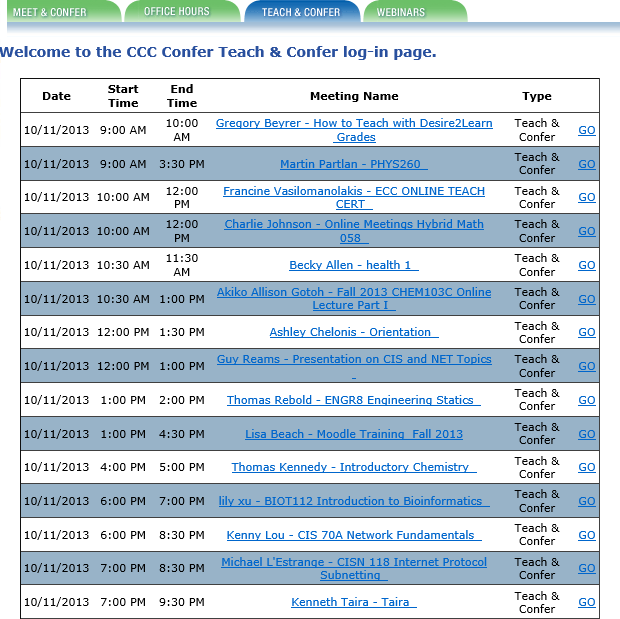
  1.  Live Instruction. In the CCCs, we call this "Teach and Confer" and literally hundreds of instructors use this tool every week to deliver live online instruction to students throughout the state (and, sometimes, the world). Classes are scheduled and links posted either within the college's Learning Course Management System or on the Confer Web site (see the schedule I captured from today's (October 11 list). As with Beth's case study example, we've had several instructors and researchers report on the effectiveness of this synchronous online instruction in reducing attrition, improving student success, and providing an effective means for students who might not otherwise be able to complete their educational goals to attend college and get their degrees. See, for example, Research on Online Spanish Classes, Case Study of Online vs. On-Campus, Grades and Attendance at Online Lectures, and Almost 95 Percent Retention.
2. Meetings. With 112 colleges spread across the state of California, the California Community Colleges is a large geographical system that requires thousands of meetings every week to coordinate activities, check on progress, communicate goals, convene groups and subgroups, and simply operate as a system.Travel costs for these thousands of meetings would be prohibitive, to say nothing of the expenses incurred for meeting space, food and beverage, A/V materials and other incidentals. I've added another screen shot of some of today's (10/11) meetings, which are not atypical: a group of math instructors, IT meetings, librarian meetings, counselor training, various committees, a work group on data governance, online educators from a single college, department meetings, several task forces, student organizations, and many more. There's no question that millions of dollars every year are saved in the CCCs because these and hundreds of other groups elect to meet online instead of traveling to campus, other campuses, or to hotels or office buildings to accomplish the same goals: collaborate and get work done.
3. Recorded Content. Students who miss class or who need to review lectures or class sessions have it easy in our system if instructors record their sessions with CCC Confer. Archived sessions are converted to MP4 format and posted to the system's YouTube channel and to 3C Media Solutions, where they can be viewed, added to playlists, embedded into syllabi or lesson plans, and even downloaded. Where captioning has been requested, captions are included and can be viewed from any device. To see how recorded lectures can be used to help students and instructors, see Using Confer to Extend Face-to-Face Classes, Archives for Students Who Miss Class, Face-to-Face Students Love Archives, Confer for Lecture Capture and Video Lectures, Archives Serve Diverse Learning Styles, or Using an Archive to Extend Class Time.
4. Online Conference. Not everyone can attend every conference for a variety of reasons. Budgets are short. Other duties conflict with the time and date of the conference. Space is restricted or there may be other physical limitations. With Confer, it's easy to capture, preserve, and distribute conference presentations to both participants and to non-participants who are nonetheless interested in the subject matter. Perhaps our best known conference of the year is the Online Teaching Conference, which captures roughly a third of its presentations this way and makes them available in real time to online attendees and as recorded videos for everyone else. We've done this for several other system-wide conferences with great success, and many organizations within the system have been able to offer online conferences using similar methods.
5. Mobile Web Conferencing. Now that Blackboard Collaborate has apps for both iOS and Android devices, attendance and participation in online classes and meetings has been extended to the mobile users in our system, making it even easier to connect while on the go.
6. Virtual Office Hours. Instructors need to meet with students, and these meetings often need to occur outside of class sessions as student are engaged in their studies, assignments, or research and need guidance or feedback.Some campuses and institutions require that these office hours be held in offices that
are physically located on campus, but those policies are changing as the realization grows that travel to campus is difficult and unnecessary, and that the virtual office is often better-equipped than the average faculty member's office (to say nothing of the office-sharing or office-less adjunct faculty member). The screen at left shows my capture of today's Office Hours schedule. As I looked these up, I was surprised to see so many on a Friday, but many also on Saturday and Sunday this weekend. This points out another great advantage to virtual office hours: since they don't occur on a campus, no other staff (custodians, campus security, etc.) are required to work so that the instructor can meet with his or her students. This makes it a more flexible and affordable service for the institution.
7. Student / Parent Orientation. As online education gains in popularity, the requirement that students enrolling in an institution physically attend an orientation session is becoming increasingly unpopular and suspect. Providing an online orientation for online students makes sense, as does the popular practice in our colleges to use Confer to orient students to online classes, the virtual classroom, the library resources available online, the availability of online tutors and other support services, and to their fellow classmates. So many students become acquainted with their college experience by meeting online via Confer, and it's also true that some of them graduate and attend commencement ceremonies online via Confer!
8. Remote Guest (Speaker / Virtual Field Trip). This is another natural implementation, and we've seen it used in very creative ways. One music instructor attended an opera and allowed her class to virtually attend from her computer, including an after-performance interview with the performers. Another instructor taught her northern California Spanish classes from Costa Rica, where she introduced locals and gave virtual tours from overseas. We've seen instructors from different institutions take turns guest lecturing in each others' classes, and conduct inter-institutional debates and presentations by students separated by physical miles but connected virtually by the Confer classroom.
9. Professional Development. The CCCs have practiced online professional development for years, and it is built into our infrastructure. Nearly every organization that serves the system uses Confer to
train employees and colleagues, and the fact that training sessions are recorded allows for new employees or transfers to catch up with their colleagues quickly by viewing the sessions online. A glance at today's and future Webinars shows the diversity of this popular service: a presentation on revitalizing education, training on online research methods, a session related to legislated adult education planning requirements, training on applications to four-year institutions, an orientation to the California College Guidance Initiative, Open Educational Resource training, a library training related to integrated library systems, a Webinar on how to flip the classroom, training on Board policy for course pre-requisites, software training for specific educational applications, and sexual harassment training. The money, time, and resources saved by having these trainings online instead of at physical locations is immeasruable.
10. Virtual Help Desk. By providing an easy way to connect with experts or support people online, colleges can better support students, especially (but not necessarily exclusively) online students. Counselors, librarians, and tutors have been especially attracted to this use of CCC Confer. For a sample playlist of testimonials from some of these professionals, follow this link.

Thanks to Beth for creating the list and to the many thousands of Confer users who've shown us how to use this tool to support education. Please feel free to share your own ways to make Web conferencing work.


Friday, September 20, 2013

Say What? Why Audio is Vital to Good Online Lectures

Here's an observation: students will forgive bad video long before they'll forgive bad audio. They'll watch presentations of lectures with fuzzy slides - or even no slides! - as long as they can hear what's being said clearly and (apparently) imagine for themselves what's being shown on the screen. Reverse the situation - with stunning visuals but terrible audio - and they'll quickly give up in disgust. (Thinking back on it, I attended many a lecture from the back of the room, where I couldn't see - or be seen - much, but was perfectly able to hear what was being said and take decent notes.)

Here's a video from Mari Smith with excellent tips about online audio enhancement:


She includes here some inexpensive microphones and connectors that will even work with smartphones to bring your audio up to snuff. Other resources for recommended microphones for Webcasting can be found here.

Audio enhances learning outcomes, especially when it involves narration that explains a complex visual, formula, graphic, or video  with which students are unfamiliar. Research indicates that adding audio (as opposed to text) to this kind of material can improve learning outcomes by as much as 80 percent. Simply by adding phonetic memory to visual memory, the brain is able to process the information more efficiently. If students are trying to understand a drawing or math formula you've presented to them, adding more text - which increases the strain on their visual processing - won't help as much as explaining to them with audio (your voice), which allows for audio processing to work with visual processing to produce understanding.


Since audio is so important, you as a speaker (presenter, lecturer, etc.) should do your best to optimize the quality of the audio you're providing to your audience. Prepare your environment for any unexpected sound (noise) that will interfere with your narration. Turn off  your cell phone (muting doesn't always eliminate all the alerts your phone wants to send you). I use a sign on my door (the current one reads "GET A ROOM...") to let others know you're not to be disturbed. Ask someone to take your dog (or baby) for a while - somewhere else. As e-learning guru Ruth Clark advises: "
Avoid ear candy. Background music and environmental sounds create unnecessary cognitive load and distract from, rather than increase, learning. Indeed, music, over longer periods of time can be incredibly annoying. Note that this also applies to sounds, such as beeps or applause, that reinforce right and wrong answers. This may be appropriate in a games, but not for most online learning. Ear candy is as bad as eye candy."


Friday, August 2, 2013

Be There Now (or Later): How to Be Present When Your Students are Somewhere (or Somewhen) Else

In 1971, Ram Dass published Be Here Now, a life-changing book for many of the Boomer generation. The book emphasized spiritual truths and the admonition to be present at the only time that matters - now - and in the only place that matters - here. With quotes like "the next message you need is always right where you are," it brought many readers to an awakening based on the present moment.

Teachers in the virtual classroom often have a difficult time with the concept of "presence" and "here and now." They miss the eye contact with students that the traditional classroom provides, making it difficult to hold the audiences' attention or even to know when they are holding it. Non-verbal signals (facial expressions, body language, hand gestures) are also missing online. Students who wish to can get up and walk around, turn their backs on the instructor, switch screens, feed babies, etc.: there is little physical control granted to the instructor over the virtual classroom. Distractions - barking dogs, incoming text messages, e-mail, Facebook prompts, etc. - are difficult to control and have the potential to destroy instructor presence. We've all got horror (or humor) stories about that: one that recently appeared in The Chronicle's Wired Campus spoke of "barking dogs, wailing babies, and a naked spouse" as intruders in the virtual classroom.

The potential for disconnectedness or distraction is so great that virtual classroom instructors have to be proactive, just as the readers of Ram Dass's book were urged to "wake up" and "be here now." They must pay attention to what they're saying, how often they pause to ask questions and wait for answers, and how they recognize opportunities to solicit feedback and participation. They regularly check the class roster and call on students to contribute thoughts or materials. They know that injecting humor or surprise is an effective method for breaking the ice and getting everyone's attention. They find ways to personalize their presentation, often by using the Web cam judiciously to show themselves and/or their environment or by inserting personal pictures (of themselves, their garden, a pet) onto slides or whiteboards.

Where synchronous collaboration is possible (i.e., where you have an online audience now), it should be encouraged and planned for. I like to make my students believe that they can be called on anytime to do something - and then prove it by calling on them randomly and often. If more than three minutes go by without my pausing to engage my online audience, I'm in danger of losing both them and myself in the lecture, not the present moment. I like to insert a PAUSE slide about every 10 slides in my presentation to ensure that I use it and "wake up" to my audience. The chat back-channel is a great way to reinforce presence and engagement, as long as you pay attention to it and encourage student participation.

Vicki Davis cites 12 healthy habits to grow your online presence in her Cool Cat Teacher Blog:
  1. Share.
  2. Respond.
  3. Comment.
  4. Link Generously.
  5. Read (or Listen) Prolifically.
  6. Distribute Yourself.
  7. Beware of Flattery.
  8. Live Life Online and Off-line.
  9. Latch Key Your Legacy.
  10. Laugh (a lot).
  11. Take Every Presentation Seriously.
  12. Expect Criticism.
Be there!

Friday, July 26, 2013

Lighten Up Online (Seriously!): The Value of Humor in the Virtual Classroom

"A joke is a very serious thing." - Winston Churchill

In Carla Meskill's forthcoming book on Online Teaching and Learning, N. Anthony has contributed a chapter entitled, "Perceptions of Humour in Oral Synchronous Online Environments." Anthony interviewed and surveyed students and teachers using the Wimba classroom specifically to determine the role of humor in this synchronous online environment. Here are some of the students' comments:
  • "It helped with the anxiety levels. The times we had humor, it did kind of lighten the mood and took the pressure off...."
  • "It helps me to relax and not feel pressured."
  • "It makes it more fun and makes it more ok to try and make a mistake than being afraid to speak...."
  • "Making it funny helps people feel less insecure about messing up."
  • "I believe that teacher-initiated humor relaxes the classroom and leaves us all more willing to participate because we aren't afraid to mess up because there is a portrayed sense of light-heartedness."
  • "It just makes it easier to feel relaxed and speaking in conversation is less intimidating." 
  • "It's easier to remember something that is funny than something that is boring... Words are remembered better when presented in humorous situations."
  • "Often humor makes the content more memorable and therefore helps to learn it faster and better."
  • "I tend to remember things more easily if I have a phrase to associate them with, and humorous phrases are particularly memorable."
Other researchers have noted the beneficial role of humor - both from teachers and from students - in the online classroom. Mirjam Hauck and Regine Hampel investigated the factors in the virtual classroom that facilitated interaction (with students and with instructors) and observed, "making humorous comments or observations to improve the interaction with individual partners and the group as a whole was also identified by several students as a motivating factor." They describe a particular use of humor by a student who did so because he perceived that "some of his peers still felt uncomfortable in the synchronous online environment and were therefore exposed to techno-stress and cognitive overload."

Michael Eskey notes that "humor, whether in the form of jokes, riddles, puns, funny stories, humorous comments or other humorous items, builds a bond between the instructor and students; bridging the student-teacher gap by allowing students to view the instructor as more approachable." How you introduce and use humor will depend on your teaching style, your pedagogical objectives, and your comfort with the tools available in the online classroom, but there is a growing body of evidence that students learn better when they are allowed to "loosen up" online and enjoy themselves and one another.

In the Confer classroom, instructors will inevitably be doing some things by "trial and error": the technology changes, for one thing. Successful instructors demonstrate a fearless attitude and don't mind making public mistakes in the process: it's probably the best way to encourage experimentation and exploration on the part of students. By letting your audience (students) "in on the joke" while you try to figure out how a new tool works, you're allowing them to participate (naturally, you won't allow your experiment to last so long that it interferes with instructional time or time on task).

Have fun!

Friday, June 28, 2013

Alone (or All One) Together Online: What Keeps Us Together in the Virtual Classroom

The constructivists maintain that social interaction leads to knowledge construction, higher order learning, and greater student success rates (i.e., achievement and completion). Students have to socially network in order for the neural network to do its thing and make connections between concepts and ideas. Sherry Turkle's wonderfully insightful book Alone Together is about, as she says, "how we are changed as technology offers us substitutes for connecting with each other face-to-face." The danger may be that if we use substitute (artificial) networking online, we may produce artificial learning or hamper the connections needed to enable real comprehension and mastery.

How do we build a community of learners from strangers who only meet online? Etienne Wenger prescribes course design elements that encourage interaction and reification (making things seem real). The use of real-time voice and video is one method the Confer instructor uses to deliver to students a sense of a real-time, articulate, caring, human. As Walsh et. al. reported in their study of Web conferencing learning communities, students may struggle with video and audio, but they prefer it to the alternative. "I think seeing someone on screen during the tutorial can keep you interested and makes the tutorial feel more interactive," says a Humanities student. Another student says, "I think the tutors who use this need to try and make it as interactive as possible ... [and to] input their own thoughts and ideas." Asked how the instructors could improve their use of the Web conferencing technology, students suggested:
  • "Find ways to ensure students participate in the live sessions"
  • "Develop and encourage methods for collaboration between students"
  • "Remember to use students' names to help make it a more personal experience"
McBrien and Jones cite similar observations from the students in their synchronous online learning study. "Talking through the microphone really helped me connect my thoughts, knowing that I could only express myself verbally. It also made me feel more in control of how I communicated my ideas because a large group of people weren't staring at me..." "Voting was great - great to see what everyone else in class felt - you don't always get that feedback." Their students reported these negatives in the virtual classroom:
  • Missing friends
  • Lack of support when presenting
  • Missing non-verbal gestures
One student observed that the class "needs to be planned more carefully and maybe tried the first session with all of the students in the classroom, not home."


We may be years away from taking these general suggestions and translating them into practical course design for the synchronous virtual classroom. As Mia Lobel et. al.  observe: "There is virtually no data describing how existing successful pedagogies, which are predicated on real-time interactive immediacy and skill practice, could be adapted to online learning environments. Much discussion and exploration is needed concerning the delivery of human relations skills online, when the pedagogy is based on group interaction, specifically active experiencing, concrete observation, abstract conceptualization and active practice and the content design is predicated on theories of group development, and observational and facilitation skills which necessitate participation and interaction."


Friday, May 24, 2013

Frequent Contact with Online Students: Priority One


Chickering-Gamson contend: "Frequent student-faculty contact in and out of classes is the most important factor in student motivation and involvement. Faculty concern helps students get through rough times and keep on working. Knowing a few faculty members well enhances students' intellectual commitment and encourages them to think about their own values and future plans. "


So we need to keep and maintain contact with our students. In the Confer environment, one of the key reinforcers of this contact comes from the audio tool, which allows real-time conversation. Jennifer Hoffman says that “The trainer’s voice is perhaps the most important content delivery method available in a synchronous classroom.” Similarly, Clark and Kwinn assert that "audio participation increases social presence and is the best option" for synchronous online communication. We seem to have built-in responders to audio cues, and students who can hear the instructor's voice - to say nothing of being heard by the instructor - are reassured that there is a human being teaching and guiding them in their learning.

Confer also provides a chat tool that gives an ongoing log or transcript of typed conversation during the session. Messages can be sent to a selected audience or a private individual. The text can be resized, and the chat can be saved (copied and pasted) to a text file. This tool provides another interaction option, and its proper use will empower students in the online classroom. Joe Tansey observes that the fact that all students can see the responses in the chat window instantly is a valuable way for participants to share a wealth of ideas and information... Text chat makes it easy for all involved to match responses with contributors, and no responses are overwritten or erased – which can be a risk with some white board tools.” Joe also feels that "a useful feature of text chat is that it can provide learners with a non-threatening way to pose questions or communicate other needs with the instructor. Questions on the mind of one learner are often on the minds of others. If instructors aren’t able to answer all questions during the allotted class time, they can usually save the text chat and respond to questions after class.” Jennifer Hoffman adds that “participants who are more reserved are often more likely to interact when text chat options are available.” In a study called "The Social Arena of the Online Synchronous Environment," Zeina Nehme writes that “a learner might be comfortable chatting only rather than talking on the microphone.” There are limitations to this tool, however: as Schwier and Balbar discovered, one is "the lack of nonverbal cues, and the difficulty interpreting the intentions of each other. Chatting is spontaneous by nature, and this spontaneity doesn't allow participants to craft clear prose, so subtleties were sometimes lost or misinterpreted."

The polling tools are also aimed at interaction, albeit in a more structured way than either voice or chat. Jonathan Finkelstein notes that "polling is a low-threshold way of involving even the more reticent participants, as it allows for a simple means to take part in and affect the flow of a live online session. Integrated polling tools not only help a facilitator quickly gauge interest, comprehension, and opinions of the subject matter at hand, but they can also be used to appraise more subtle measures of student engagement and understanding: those more akin to the hesitant raising of a hand in a physical classroom.” Diana Perney at the Pennsylvania Virtual Charter School says, "I use this tool throughout a session. I create on the white board a multiple-choice question to start the session and ask the learners to respond, choosing A, B, or C. The polling results give me a sense of the class and activates prior knowledge for the learner. I will repeat this process throughout the session to engage the learners and to keep my finger on the pulse of the class. It often catches the participants off guard – they don’t know when I will ask the next question. The polling tool also meets the needs of visual, auditory, and kinesthetic learners. I ask the question, they see the question, and a button needs to be clicked to indicate a response.”


Friday, May 17, 2013

Do You Chat When You Teach? Some Pluses and Minuses

In the Confer tool set, the chat tool provides text-based chat, a log or transcript of which can be saved and reviewed after the session. Private and public text messages can be supported, and the text itself can be re-sized or reformatted to personalize the messages.


Some observations about the chat tool:
  • "Text chat is useful when the instructor would like all participants to respond, in contrast to using audio for a single response.”- Clark, R. C., and Kwinn, A. The New Virtual Classroom: Evidence-Based Guidelines for Synchronous e-Learning. San Francisco: John Wiley & Sons, 2007, p.53.

  • “Depending on your familiarity with the virtual classroom features and your ability as a presenter to multitask, using the chat facility may or may not be a good option for you. Audience size should be a consideration when planning this type of feedback method. We’ve discovered that having another facilitator or production assistant available to help support direct messaging (chat) is a valuable asset when managing the event’s conversation flow.” - Sandra Johnsen Sahleen. “Creative Interactions in the Virtual Classroom.” In Clark, R. C., and Kwinn, A. The New Virtual Classroom: Evidence-Based Guidelines for Synchronous e-Learning. San Francisco: John Wiley & Sons, 2007, p. 124-25.

  • “… a useful feature of text chat is that it can provide learners with a non-threatening way to pose questions or communicate other needs with the instructor. Questions on the mind of one learner are often on the minds of others. If instructors aren’t able to answer all questions during
    the allotted class time, they can usually save the text chat and respond to questions after class.” - Tansey, Joe. “Learning to Effectively Use the Virtual Classroom.” In Clark, R. C., and Kwinn, A. The New Virtual Classroom: Evidence-Based Guidelines for Synchronous e-Learning. San Francisco: John Wiley & Sons, 2007, p. 65.

  • “Because chat offers a seductive opportunity for participants to communicate with one another privately at any time during a session, we recommend setting some ground rules regarding its use. For example, we ask participants to use chat for on-task communication only during instructional activities – no passing notes in class.!” - Clark, R. C., and Kwinn, A. The New Virtual Classroom: Evidence-Based Guidelines for Synchronous e-Learning. San Francisco: John Wiley & Sons, 2007, p. 112.

  • “One way to use private messaging is to pair participants up to discuss an exercise or question by sending messages back and forth to each other. “ - Clark, R. C., and Kwinn, A. The New Virtual Classroom: Evidence-Based Guidelines for Synchronous e-Learning. San Francisco: John Wiley & Sons, 2007, p. 111.

  • “Instructors can also use text chat to allow all learners to respond to a question or exercise. Participants can view all responses instantly. This is a valuable way for participants to share a wealth of ideas and information. Text chat can be more efficient for some exercises than using the virtual classroom white board tool. Text chat makes it easy for all involved to match responses with contributors, and no responses are overwritten or erased – which can be a risk with some white board tools.” - Tansey, Joe. “Learning to Effectively Use the Virtual Classroom.” In Clark, R. C., and Kwinn, A. The New Virtual Classroom: Evidence-Based Guidelines for Synchronous e-Learning. San Francisco: John Wiley & Sons, 2007, pp. 65-66.

  • “A disadvantage of chat is the limited amount of screen real estate dedicated to text messages in most virtual classroom interfaces. When the response box fills, new text messages cause older responses to scroll up. If you have a larger class, you may want to use some crowd control mechanisms to limit who sends messages. For example, you might ask everyone to type in an answer but only the women or only a certain division to actually send their answers. Alternatively, you may provide a workbook in which everyone responds and, then, after a pause, call on only some participants to type in their answers.” - Clark, R. C., and Kwinn, A. The New Virtual Classroom: Evidence-Based Guidelines for Synchronous e-Learning. San Francisco: John Wiley & Sons, 2007, p. 110-11.

Friday, March 22, 2013

What DOESN'T Work in the Virtual Classroom?

I've written a lot about the benefits of the virtual classroom and included many examples of what works well in this environment. In the 10+ years of CCC Confer, we've seen exponential growth in popularity among faculty and students, and we've watched Web conferencing technology become more and more reliable and stable for our thousands of users.

But it wouldn't be accurate or fair to pretend that Web conferencing is always  the best option or that it is always the best way to reach students and deliver online instruction. In fact, there's evidence to suggest that Web conferencing provides some barriers for students and instructors, which must be recognized and overcome for a successful experience and for effective instruction to take place. For example, I just previewed an article in the June 2013 Journal of Computing Sciences in College entitled, "Under What Conditions Does Web Conferencing Inhibit Learning in a Computer Science Classroom?" The authors - Jami Cotler of Siena College and Dima Kassab and Xiaojun Yuan of SUNY-Albany - drew conclusions from two lectures (one delivered face-to-face and one delivered online via Web conferencing) and students' reactions to the experience of these lectures. I'll reserve comment on the methodology or validity of this study, but I'm interested in the students' perceptions.

Distractions. In the Cotler study, 31% of the students reported problems with distractions during the virtual lecture. The nature of these distractions were not disclosed, but we can guess that they may have involved the typical distractions online students encounter: e-mail messages, tweets, Facebook posts, instant messages, and other Web excursions. It may also be that these students found the Web conferencing interface itself distracting, with its chat window, video, whiteboard, etc. The face-to-face classroom also has distractions, of course, but eye contact with the instructor is often inhibition enough for students to block them off and pay attention to the lecturer.

To help students overcome these distractions, the experienced Confer instructor gives guidelines to students before their first online class session and even at the beginning of the session. Disable notifications from your online applications (noises, signals, pop-ups): they will interfere with your concentration. Some instructors even provide specific instructions for turning off, say, Facebook notifications. And, while the class is meeting online, it's good practice to keep the students alert by mixing up the delivery.

Engagement. Cotler's students reported that they were 38% less engaged in the virtual classroom than in the face-to-face environment. Oddly, though, 88% "felt they were able to participate during the [Web conferencing] lecture" and 56% "felt highly engaged in the course materials and the course activities" in the online classroom. So the perception of less engagement may have been related to distractions or some other subjective factor. Many (69%) of the students reported "less connection to the instructor" when using the virtual classroom. However, they reported using the whiteboard and chat features, and most of the students claimed to have reached out to either another student or the instructor during the online session.

We know from long experience that keeping students engaged in the virtual classroom is more challenging than in the traditional environment. You can't see all of your students, and you're not going to be able to validate all of their behavior all of the time. Your sense of control online is compromised because of the distance between you and the "desks" in front of you. But you can keep students engaged by doing some extra work: preparing breaks in which students provide examples, express opinions, or vote on issues. Work in assessments or chat activities, and use breakout rooms to divide a large class into manageable small groups where it's harder for students to hide or let others do all the work. Several of my blog posts provide examples of these strategies.

Unfamiliarity with Technology. I was surprised to read in Cotler's study that unfamiliarity with technology accounted for only 13% of the reported problems with the virtual classroom. Half of all the students "stated that it was convenient and that they like that they could remain in the comfort of their home," and an amazing 81% reported "feeling less stressed about tasks accomplished during the [Web conferencing] session in comparison to the face-to-face session." So technophobia (or at least fear of synchronous online interaction), while not dead, is on the wane with today's students.

It's a good idea to orient students to the virtual classroom before you make them do something in it. This can happen during a "practice" session, in a "sandbox" (we offer several on the CCC Confer Web site), or via training materials (videos, slides, documents) you provide for them. Given these results and the increasing popularity of synchronous online rooms (Skype, Google Hangouts, etc.), it may be just as important that you orient yourself to the virtual classroom and feel comfortable showing its features to your students.

What doesn't work in the virtual classroom? Mainly, not having a plan to use it!

Friday, February 22, 2013

How to Encourage Active Learning Online

According to the research findings summarized by Chickering and Gamson (1987), good practice in undergraduate education encourages active learning. R.R. Hake studied the role of active learning in 1997 by comparing traditional courses to courses using active learning techniques and concluded: "the mean gain was more than twice as large for active learning classes, so you could say that courses implementing active learning are more than twice as effective as traditional courses in building basic concepts." Allison Carr-Chellman and Phillip Duchastel (2002) observed that synchronous online activities "yield a more direct sense of interaction, increased collegiality, immediate resolution of problems, and better team building." Duncan, Kenworthy, and McNamara (2012) noted that synchronous online activities had a positive effect for students on both final exam performance and overall class achievement. Oztok, Zingaro, Brett, and Hewitt (2013) recently concluded that students who interact with their instructors in synchronous online sessions also read the discussion forums more closely, respond more thoughtfully to forum prompts, and spend more time reading course materials.

 Even with evidence of its effectiveness, it's sometimes difficult to incorporate active learning into online courses because the temptation to isolate as in instructor is strong.  You feel alone and it's awkward not to lecture, to wait on the "invisible" class to respond and learn for themselves. Here are some tips from active learning advocates.

Breakout Room Collaboration. Heidi Beezley, instructional technologist at Georgia Perimeter College, advocates having students talk to each other as they collaborate in breakout rooms. "I think the trick is to try to pull them back to the main room before they get to the point where the discussion has died down... [You] need to establish a culture of accountability, making sure that they use the time wisely, or they will run out of time and won't be able to complete the task." She assigns each student to a base group of students who work together in groups of five throughout the course.

Ready, Set, Go (or One, Two, Three): Put it in the Chat Box! Peyri Herrera and Larry Green arrived at this method independently, as far as I know. They both use a spot check with a countdown to have students answer a question in chat, simultaneously. The important point is to have everyone answer at once, so that the instructor can guage how well they're understanding the concept, but also to encourage students to think in real time, to pay attention, and to be present.

Communicative Activities. Planning to involve students in the Confer session has the greatest potential for creating an active learning environment. Chat is effective, especially if you seed it,  but so is using the whiteboard for brainstorming. Allowing students to role play or debate can be effective, and a spot poll makes sure everyone is paying attention.

Think, Pair, Share. This method from North Carolina State University has gather ideas about a topic (Think), choose partners with similar interests (Pair) and work together on a presentation they will deliver to the class (Share). 

Be Quiet. Waiting for students to respond is hard, perhaps especially so online. But if you don't wait on them, you may not get them to respond. Learn the value of silence online.

Greet Your Students. Believe it or not, simply calling your students by name and acknowledging their presence has an effect on their participation. It's too easy to hide online: greeting them makes them feel less invisible and encourages them to get involved.

Give Them Control. My favorite technique is to reverse roles with a student. I like to explain a technique, demonstrate it, and then invite a student to try it out by giving desktop control to that student or inviting them to use the whiteboard to illustrate the concept. The student chosen is, of course, an active learner, but the rest of the class tends to become engaged because there is always the possibility (probability in my case) that one of them will be asked to reverse roles next.

Friday, January 18, 2013

Controlling Mayhem in the Synchronous Classroom

A seemingly ubiquitous commercial for an insurance company uses an evil, smug character called "Mayhem" to illustrate what can happen to change an ordinary day into a catastrophe. Mayhem falls through roofs, wrecks cars, spills coffee, drives lawnmowers through windows and boats, and diverts the attention of or misdirects drivers. All in all, he's a scary character.


There are moments when the Confer classroom may seem to have been invaded by Mayhem. A guest lecturer or speaker fails to connect or has audio problems, and your students begin to discuss things on their own that have nothing to do with the course. Students logging on have technical problems and insist on immediate attention; meanwhile, the rest of your online audience becomes irritable and even hostile in their chat remarks. Your network goes down in the middle of your lecture. A fire engine roars by your window, siren blaring. The software you're using freezes up. And so on.

Here are some suggestions for controlling the mayhem (and, no, these do not involve buying an insurance policy).

Roll With It

Understand that the nature of Web conferencing - like teaching itself - invites an element of mayhem. There are human factors, as in the traditional classroom, and these interact with (and sometimes exacerbate) the technical factors. If you use this technology often enough, something is sure to mess up at least once, and it will mess up when it's least convenient for you. 

When this happens, your reaction will be the most important factor in determining the outcome of your online session. Rage at the machine, roar at the outrage, or dissolve into a blubbering heap and you're certain to make the session a memorable failure. Roll with the punches and you at least have a chance of salvaging something from the shipwreck. If you remain upbeat and conversational, your audience will be more likely to wait out the problem with humor and patience.

I suggest that you deal with the problem directly instead of trying to mask or ignore it. If it's a human problem, confront the disrupters and enlist their help in restoring order. Coach your audience by explaining what you expect to see happen and providing alternatives to disrupting the session (e.g., call the help desk, take the discussion offline). Be quick to bring disruptive students on task, using the tact you would expect to receive if you were behaving similarly. When all else fails, boot them out. All the time you're doing this, keep a cool head and a smile (if possible). You're setting an example that your audience will find comforting: yes, there's a problem, and yes, I'm going to deal with it and move on. 

If the problem is technical, your best bet is to have a backup or fallback option. For example, about a month ago my campus network went down in the middle of a Webinar I was hosting. My remote presenter and the majority of our audience didn't experience the problem, but I was lost, temporarily. I have a backup network option (actually two), fortunately, and was able to re-join the session without anyone realizing that there had been a problem.

Know how to mute and un-mute your audience and speakers so that you can avoid the annoying disruptions that are otherwise beyond your control. Test your equipment, and have backups available, just in case. Deliver your slides to another moderator just in case you're prevented from presenting them. Have a way to communicate with at least one other participant without using the Confer tools (e.g., cell phone, IM, text message). 

Fortify Yourself

You can keep mayhem at bay by building a fortress that is impermeable. Get a room that can't be opened by co-workers, family members, etc. and put a "Do Not Disturb" sign on it. In selecting the room, try to make sure that it is well insulated from outside sounds and noises. If you're going to be on-camera, choose a non-distracting background. Clear your desk, get rid of the party hats, wash your face.

Check your network and phone status, and have a backup for each if possible. I like to use two computers whenever I'm presenting, and I also generally have each connected to a different network. 

Your audio equipment is important, and you can't easily handle an emergency if your audience can't hear you. Use a good microphone or headset and have substitute equipment, even if you're sure there's nothing wrong with the set you're using. Earlier this month, I used a high-end wireless microphone for a keynote speaker at a conference and was overjoyed to see the glowing reviews by online attendees at the sound quality. I used the same microphone the next day and got nothing but complaints until I plugged in the alternate equipment. 

If you have to use the bathroom, make sure you can get to it quickly from your spot and that it will be open. Likewise, prevent voice cracks by having water handy while you're speaking.

Warning: Danger, Will Robinson!

Let your students or online audience know that they're using technology that requires a certain amount of technical checking and may be susceptible to interruption. If possible, have them do the technical checking before joining the session, either by using a practice room or by running setup wizards in advance. Make this a requirement so that you're not greeted with indignant protests when they try to join the room with incompatible equipment.

You can spend some time orienting students to the environment and to acceptable behavior in your classroom. Show them how to participate, ask questions, raise hands, and communicate. Stress that you expect them to be open-minded and patient. 

Some instructors I know enlist the aid of students to perform some of the moderating tasks. They assign someone the duty of monitoring the chat, letting the instructor know when there's a question that needs answering, and some even assign students to provide the answers if possible. Another student will be asked to remind the instructor to start the recording, and another may have the job of looking for raised hands. This method - particularly if it's re-distributed over a semester - helps to keep students engaged and on-task.

An Ounce of Prevention

The worst way to come to a Confer session is on time. ALWAYS plan to be in the room at least 15 minutes early, so that you're able to deal with the unexpected in advance. It's also a good idea to have students come early, so that their problems can be fixed before the class actually begins. 

Design your class so that there are breaks where minor problems can be addressed or corrected. Have a plan of action, complete with re-actions, and keep planning right up to the time of the presentation. Sending e-mails to students to inform or remind them of the event and what you expect them to do in advance is always a good idea. Have a slide where emergency numbers are listed so that students will know what to do when all else fails. 

Know how to use private messaging so that you can deal with disrupters directly and quickly without embarrassing them. Calling out one of the audience for bad behavior has negative consequences that are very difficult to overcome. Be the adult in the room.

Your audience does not really expect a perfect world, even online. And they've all made mistakes or experienced situations where things didn't go as expected. A hint of mayhem won't send them into a panic, provided you deal with it cheerfully and appropriately. Your professionalism and commitment to getting them the materials and content you're paid to deliver will impress them.
Get Twitter Fan Box Widget