 In November, 2014, six summits were held in six California
regions (San Diego, Orange County, Los Angeles, Pasadena, San Francisco, and
Sacramento) to solicit ideas for a professional development clearinghouse to
serve the California Community Colleges. A total of 545 people registered for
these events, and idea maps were created for each summit: see http://www.3cmediasolutions.org/files/?f=460&key=5f29e2ee3fbd198cd3f53a8e6b7105eb44e43259.
In November, 2014, six summits were held in six California
regions (San Diego, Orange County, Los Angeles, Pasadena, San Francisco, and
Sacramento) to solicit ideas for a professional development clearinghouse to
serve the California Community Colleges. A total of 545 people registered for
these events, and idea maps were created for each summit: see http://www.3cmediasolutions.org/files/?f=460&key=5f29e2ee3fbd198cd3f53a8e6b7105eb44e43259.We got a lot of ideas from a diverse collection of people: educators, student service specialists, HR professionals, classified staff, and administrators all over the state. Here, I'll summarize the "bells and whistles" these folks suggested: the features they'd like a PD Clearinghouse to include.
24/7 Access.
Accessible.
The Clearinghouse conforms to ADA Section 508 requirements and Universal Design
standards.
Analytics and
Reporting. The Clearinghouse
processes submitted evaluations, tracked Flex activities, individual and group
PD activities, success factors (and “needs improvement” indicators), impacts on
student success, online and on-site PD events and participation. Reports and
analytical summaries are provided showing trends, needs, and usage patterns. Analytics
are tied to student success. Analytics
include state-wide, district-wide, and college level reports. Predictive
analytics are included.
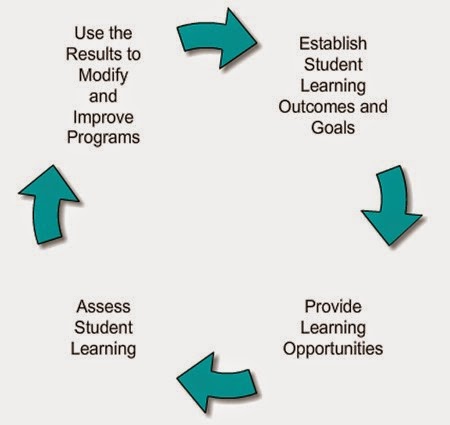 Assessment.
Tools for assessing what users have learned are built-in. Quizzes, tests, and
other
Assessment.
Tools for assessing what users have learned are built-in. Quizzes, tests, and
other
There are also self-assessment features. Users can define a
PD Plan, identify learning styles, and indicate prior learning and
competencies.Assessments are tied to student learning outcomes.
Certification: see
Credentialing (below).
Chat: see Social (below).
Content
Customization. Users can edit, tag, share, highlight, and rename
content uploaded to the Clearinghouse.
Content Descriptions.
Content can be identified and searched by the source of the content (e.g.,
author, host institution).
Course Management
System. The Clearinghouse can be embedded in a Course Management
System, enabling users to login to their host college’s CMS and access the
Clearinghouse from there.
Copyright.
Licensing information is provided for all content. CC-BY licensing
predominates, allowing free access and editing with attribution. Usage and
re-purposing rights are clearly delineated.
Credentialing (see also Tracking). Users’ PD efforts and accomplishments generate
credentials stored in the Clearinghouse and shareable or downloadable by users.
These credentials include badges, certifications, and credits. The credentials
are verified.
 Users receive and the system keeps track of credits for
workshops, courses, and other PD activities. Portfolios are maintained for each
user, including attendance, Flex tracking, and credits/badges Employees can
be re-certified by using the Clearinghouse’s resources/certificates
earned (like DegreeWorks).
Users receive and the system keeps track of credits for
workshops, courses, and other PD activities. Portfolios are maintained for each
user, including attendance, Flex tracking, and credits/badges Employees can
be re-certified by using the Clearinghouse’s resources/certificates
earned (like DegreeWorks).
Host institutions can receive reports of credentials earned
by their employees. A statewide coding system is employed to track
participation in events, courses, and activities. This can be used for purposes
of salary advancement.
Current: see Quality Control (below)
Database of Related
Topics. See also Search.
Cross-references are built-in for entries.
Discussion Boards:
see Social (below).
Ease of Use (see
also Flexible). The Clearinghouse is
accessible and intuitive. It has a user-friendly interface and simple search
and index features (similar to YouTube and Amazon). Navigation is clear because of logical
organization and good Web design.
A “Siri” or “Echo” interface is used for voice recognition
and interaction with the system.
Evaluation.
A toolbox is provided for evaluation of PD activities and programs. This
measures the effectiveness of professional development.
 Feedback Mechanism.
Users can provide feedback to the CCCCO regarding, for example, student equity
information and similar required reports. Users can suggest content and respond to polls or surveys
about collection needs or gaps. They may also provide testimonials and
comments. The
Feedback Mechanism.
Users can provide feedback to the CCCCO regarding, for example, student equity
information and similar required reports. Users can suggest content and respond to polls or surveys
about collection needs or gaps. They may also provide testimonials and
comments. The
File Sharing.
Users can upload files and make them publicly viewable or shareable, with
options for how to share them (e.g., only with specific groups or individuals).
File
Storage. Users can store files, videos, materials digitally in private
storage areas. Stored content can be selectively shared with other users,
groups, or institutions. Sharing can be limited to time periods or to links
that expire according to a specified deadline.
Flex Reporting (see Tracking)
Flexible. They system can grow indefinitely, so that new
content can be continuously added without reaching a storage limit.
Forums: see Social.
Free. No
fees for usage are charged.
Groups: See Social
Help:
Tiered help system for people with different tech. needs.
Inter-segmental
and Integrated. The Clearinghouse serves as a “One-Stop Shop” for
connecting to all segments of the CCCs (administrators, classified staff,
faculty, service positions) and integrating with each campus’s professional
development portal or Web resources (see also Login). The
Clearinghouse can be embedded in each campus’s Course Management System. Campus representatives (professional development contacts)
are identified for each campus. Specific disciplines and areas of service are identifiable
and have integrated resources related to these areas. There are strands for
exploring specific roles and career goals. Materials are integrated with a Student Success Map, Course
Management Systems, PeopleSoft, Datatel, Payroll, and Enrollment Services.
International
Education/Study and Teach Abroad Information.
Just-in-Time
Training, Information. The Clearinghouse allows users to make requests
and receive timely information or training to accommodate immediate or quickly-developing
needs.
Licensing.
The Clearinghouse uses blanket licensing to provide content that requires
subscription fees for access.
Login. User IDs are verified by use of Federated ID,
enabling them to use a single sign-on for the campus, the Clearinghouse, and
other CCC services (e.g., CCC Confer, 3C Media Solutions, @ONE, OEI). Logins are used to determine role-based accounts (e.g.,
faculty, administrator, adjunct) which direct users to relevant content for
those roles. There is a Guest Login option.
Media-Rich.
Mobile.
Users can access the Clearinghouse from mobile devices. A “lite” version is
incorporated into an app.
Navigation.
There are “Where Do I Start?” links throughout the Clearinghouse to help users
navigate the vast quantity of content.
Open Source.
Creative Commons licensing – e.g., CC-BY – are sought for all content, enabling
users to re-use and re-purpose (with attribution) content found in the
Clearinghouse.
Personalizable.
Users can make and receive recommendations for content. They can instruct the
system (Clearinghouse software) to display content related to their specific
interests. They can also “opt out” of certain portions of the Clearinghouse by
filtering out areas that do not interest them. The system can also “push”
materials to the user based on specific positions, job plans, tiers, etc. Users
can maintain a “wish list” for materials or training content. Users can also upload or add biographical details in a
personal profile. They can maintain a portable (shareable, downloadable)
portfolio of professional development activities and accomplishments. The portfolio (or “PD transcript”) is
(optionally) publicly searchable, allowing other users to find a user by
searching for specific talents or skills, etc. There is also an option for
managers or supervisors to view employees’ portfolios and completed activities
(the user chooses this option and can undo it). Users can add areas of
expertise to their personal profile, to be included in the Experts
Database (a content feature). Users can maintain a personal calendar which can
be shared with others. The calendar
allows users to share events, send invitations to other users, and arrange for
“meet-ups” by linking to collaborative features in the Clearinghouse. It also
includes a “registration” option that allows users to register for events
listed in the calendar. The Clearinghouse keeps track of user preferences and
interests, including searches. Recommendations or suggested content are
generated based on past history. Users maintain an

Interests Profile. Users can use the Clearinghouse for self-assessment:
personality, learning styles, aptitudes, etc. Career Pathways are suggested
based on personal profiles. There is a resume-building tool. Users take charge of their own learning by selecting from
the Clearinghouse’s options. This can be mapped into personal training
schedules or a personalized PD Plan.
Personal options can be saved, edited, and printed or
downloaded via a report feature. A “time on task” feature enables users to record their
activities while using the Clearinghouse. Individual Colleges are also able to personalize content and
form groups that use local, college-level information and resources.The Clearinghouse has personalized save options: My Files,
My Resources, My Bookmarks, My Calendar. Users have a personalized dashboard
for navigation, with access to their statistics and reports, Customized
Learning Path, Interests, Groups, Bookmarks, Stored Searches, Exports, Produced
Content, and Stored Content.
Polling/
Surveys Users can be polled, can create polls and send them to groups
or defined populations.
Preview Option Users can “preview”
materials (get a “quick look”) prior to downloading them.
Privacy. Users’ privacy is
protected. Users can opt to make private all or some activities while online
and using the Clearinghouse.
Quality Control. The
system is monitored by dedicated staff members who weed the collection of
outdated or inappropriate content. The Clearinghouse resembles “EBSCO” more
than “Google” because of controlled vocabulary and selective entries. Tags and
meta-tags are included – including required fields – for each content entry.
Content providers are accountable for content quality. A vetting process is
clearly defined.Users can rate content and add reviews. There is also an
indicator of the number of “hits” or “views” for content entries. Currency is maintained, with built-in expiration dates for
time-sensitive content. All content has a “date added to the collection” tag.
Users can limit searches to “new” materials.
Quick-Access
Headlines.
Ratings (see also Quality Control). Users can rate content and
add reviews. A star system, with “Yelp”-like features, is incorporated, using
standardized ratings (e.g., 5 stars).
Regional.
Regional connections are facilitated by identifying regional experts and
regional professional development activities.
Resume.
Users can build, upload, and download resumes using the Clearinghouse tools.
Sandbox.
Users can use “sandboxes” to develop and test modules before they are added to
the Clearinghouse. Modules can be created from other (existing) modules in the
Clearinghouse. Group editing is supporting, so that others can add features
once the author finishes or gives up.
Search.
Users can search by keyword, author (source), subject, department, instructor, job
role, pathway, standard, size, length, cost, and material type. Filters are
included for time (length of time required or expected to complete; length of
time for workshops or other learning events, etc.).
There is a “drill down” feature for refining or expanding
searches on topics. Taxonomies are clearly organized and indexes are robust.
Self-paced
Courses. Users can take courses directly from the Clearinghouse, with
their progress tracked and built-in assessments and credentialing.
Social. Users can find and network with one another according
to topic, job, interests, region, and similar criteria. PD Coordinators, for
example, can form a “hub” for sharing ideas, resources, information, and other
information. Users can find one another, follow one another, search for
contacts, see what others are doing (publicly), and connect with one another in
various ways (e.g., “LinkedIn” connections).Forums, discussion boards, and chat rooms are provided for
groups with similar jobs or interests. Users can send e-mails or instant
messages to invite others to chat. These can be sub-divided into
classifications or whole campuses.
There is a phone link to chat rooms and instant meetings. Presence is included, allowing users to know who is online
now. Inquiry groups can be formed by any individual. For example,
online book clubs can be created around specific titles or interests. Groups
have “LinkedIn”-type features: join, invite, with moderators or no moderators
according to the group founder’s preference. Users can opt out of group
membership at any time. Self-directed Communities of Practice are supported.
These include cohorts based on software/operating systems (e.g., Blackboard,
GoogleDocs) and disciplines. The Clearinghouse facilitates face-to-face encounters by
allowing users to plan, invite, select venues for such events. Pinterest, Facebook, LinkedIn, and Twitter are supported,
along with the ability to “follow” users or topics.
Subscription
Services. Users can subscribe to – and unsubscribe from - listservs, topical updates, podcasts,
“push” notifications (alerts), RSS feeds, Webinars, reports, and a variety of
subscription options for receiving updates.
Tracking Capabilities (see also Credentialing). Portfolios, or PD Transcripts, are
automatically updated as users complete PD activities. Reporting capabilities
are built-in so that users and/or HR staff can use the Clearinghouse to
transfer credentials or meet learning requirements. Mandated (e.g., compliance) training can be
tracked by host institutions to satisfy users’ PD obligations. Flex reporting
is also accomplished by tracking efforts and participation in PD activities.
Videoconferencing.
Users can use the Clearinghouse to meet in “Hangouts” or other online
conferences with peers (e.g., Confer Now). This may include Web conferencing
and telephone bridging for participation without a computer or video device.


