Showing posts with label web conferencing. Show all posts

Friday, May 2, 2014

Marshall McLuhan and Web Conferencing: What Message Is Our Medium?

I've just read a fascinating chapter by Mark A. McCutcheon which reflects on Web conferencing, Marshall McLuhan's thinking, and intellectual property issues. The print version appears in McLuhan's Global Village Today: Transatlantic Perspectives (Pickering and Chatto, 2014, ISBN-13:9781848934610) and a "pre-copyedited, pre-print version" is available here. The author covers more than I can describe here (and does a better job than I can), but I'd like to explore a few points specifically related to the Web conferencing medium.

McCutcheon was asked to present a paper at a conference which, as it turned out, he could not physically attend. Instead, he used Web conferencing to present his paper. But what does that mean, he asks? "I was neither present at the event, nor presenting a paper, as denoted by academic tradition, so much as orchestrating an audio-visual 'presentation,' at once a performance and a recording" (emphasis added). He presented "a digital slideshow, video images of my talking head and of the room of delegates..., and my microphoned voice, as I spoke the text of my paper." The session was recorded and can be "called up, replayed and paused, and distributed as a link with a password."

Web conferencing, says McCutcheon, "blurs the lines between performance and recording, between presence and representation." He goes on to describe a "dubject" created by this kind of technology, "assembled through technologies of mechanical reproduction, and distributed through networks of electronic distribution that blur the boundaries between ... consumer and commodity, the organic self and technological others...." We who use Web conferencing and similar technologies to reach distant audiences and/or future audiences are using "dubjection": "a technological doubling and spacing of the self."

He describes the spacing vividly:

On the day of the proceedings, I wasn't at Marburg, or at AU... If the conjunction at connotes a sense of place, of position - a humanistic, common-sense expression of live, embodied presence - then in that sense, I was somewhere, of course: I was at a neighbour's house. But that place became neither here nor there, so to speak, for the duration of my attendance at the conference. Would it be more precise to say that, at that time, I was "@" a number of spaces at the same time?... My image and voice projected into the Marburg town hall, racing unplumbed lengths of cable and unknown airborne frequencies, translated into strings of ones and zeroes as dense and complex as protein chains. Routed and rerouted through data centres and ISP addresses across the Atlantic (and quite possibly elsewhere), my dubjected presence traversed any number of relays and channels in the global IT network, less a village, certainly, than a vast electric ocean.
 All of us who have practiced Web conferencing are familiar with this disconnect. We're "here" and "there" at the same time, and our audience is "there" but we want them to be "here" while we're communicating with them. We want to see them and gauge their reactions, inspire them, motivate them, connect with them. The technology allows us to do some of that - more than we expected, in many cases - but it can't (yet) hide the "dubjection" effect. McLuhan said once that "media are a means of extending and enlarging our organic sense lives into the environment." That's why we confer (Confer) through Web conferencing.

The medium (Web conferencing) may well be the message. McLuhan proclaimed famously that "it is the medium that shapes and controls the scale and form of human association and action" (p. 9) and that "the 'message' of any medium or technology is the change of scale or pace or pattern that it introduces into human affairs" (p. 8). To ignore the change of scale, pace, and pattern that the virtual classroom engenders is to disconnect with the experience and the audience(s) we're trying to address. This evolving medium has the capacity to enrich our perceptions, insights, connections, and understanding of one another, provided we exploit its potential and help students and audiences to adapt to it.

Friday, February 28, 2014

Be the Best Web Conferencer You Can Be! Tips for Best Practices

If you've been using Web conferencing software for a while, you probably already have a sense of
what is good practice with the tools. "Best practice" is more difficult to define and depends on context: your mileage may vary from mine. As instructors, we rely on intuition rather than dogma to develop best practice and what we know is more implicit than explicit. I've done a bit of research (so, hopefully, you won't have to) to try to locate sources where best practices in Web conferencing for instruction have been communicated and explained. There is also a significant amount of knowledge chronicled in other posts on this blog, so this will definitely NOT be the last word. Use it as a starting point.

Ms. Giovanna Badia and Mrs. April Colosimo presented at the 2013 ASEE (American Society for Engineering Education) Conference on "Best Practices for Engaging Users in a Web Conferencing Environment". They emphasize the need to 1) Introduce and Orient; 2) Inform; 3) Reinforce Active Learning and Feedback; 4) Humanize the Environment; 5) Close and Follow-Up. Among their tips: "There are advantages and disadvantages to maximizing the screen while displaying the content. For instance, the chat box will no longer be visible to the presenter. However, it will also mean that the names of registrants will not be seen in the resulting video. It can be a challenge to devote attention to both presenting and scanning for questions or comments, so it is advisable to have a second person, whenever possible, to monitor and respond to chats...." "Just as with face-to-face sessions, you can present case studies or prompt students for topic suggestions if illustrating search tools. It can be distracting for participants to move back and forth from applications to the web conferencing software so it may require more planning in advance. Try to slow down when demonstrating, since there may be a delay between what the instructor shows and what participants see on their screens...." "Use questioning as an active learning technique to involve everyone via audio, chat, or with the use of a whiteboard. Be patient and wait for responses. Decide how to manage discussions beforehand, with participants raising their hands or waiting for their turn to type or speak. Take time to reflect on comments and ask participants to elaborate. If you feel relaxed enough, you can prompt specific individuals by name to contribute to a discussion but it has to be done sensitively since there are no visual cues to indicate whether or not someone is comfortable responding. The whiteboard can be
a tool for engaging participants in the design of a concept map, brainstorming ideas, and producing a list of key terms...."

Learning Solutions Magazine  posted an article recently by Darlene Christopher entitled, "Best Practices for Polling in Web Conferences". Her suggestions for designing poll questions: 1) Keep it short; 2) Avoid double-barreled questions; 3) Eliminate acronyms or unclear language; 4) Avoid leading or biased questions. When formulating responses, she recommends: 1) Use plain language; 2) Limit answer choices; 3) Use mutually exclusive responses; 4) Use number increments in equal amounts; 5) Include options for outliers; Include a "don't know" option if  appropriate. The article includes many practical suggestions for rehearsing, anonymous polling, and broadcasting poll results.

Jozianne Mestas at the University of Colorado, Denver, has published "Best Practices for Web Conferencing With Adobe Connect Pro." The article provides advice for PowerPoint Preparation: "be
conscientious of the font sizes you select to ensure that your web participants will be able to read your slides. The same principle applies for using intricate pictures, graphics and non-standard fonts. Since Adobe Connect Pro uses its own reader to view the presentation, in order to make sure all participates can view the content, it is best to use simple fonts, graphics, and animations." On Screen Share: "If you choose to utilize the screen share option, it is recommended that you use the screen
resolution of 1024x768 to ensure that your participants can see your screen without demanding too much computer network bandwidth." For audio: " I recommend limiting the number of open microphones at one time to minimize the possible confusion caused by multiple individuals trying to
talk all at once."


Saint Leo University makes available its one-page "Web Conferencing Best Practices for Moderators" divided into 3 sections: 1) Before Session (test connectivity, check lighting and background objects, etc.); 2) During Session (use an ice breaker, speak clearly and at an even pace, etc.); and 3) After Session (follow up with meeting notes and next steps).

The Sloan Consortium has a presentation by Linda Macauley of Elizabethtown College entitled, "Best Practices in Using Interactive Web Conferencing for Online and Hybrid Courses". Linda's work has also appeared in Faculty Focus. Her tips can be divided into these categories: Getting Started; Classroom Management; and Troubleshooting and Technical Support. Getting Started: practice in Classroom Management: explain the icons; establish a protocol for speaking and asking questions; appoint students to be presenters; use yes/no buttons periodically. Troubleshooting and Technical Support: add the help number to every invitation; remind students about background noise; do periodic sound checks;schedule at least one test session with students; provide "how to join"
Add caption
instructions to students; post invitations where students will find them.

Sloan-C also archived a presentation by three Eastern Kentucky University professors - Paula Jones, Maryann Kolloff, and Fred Kolloff - entitled "Best Practices to Promote Learning Through Web Conferencing: Resources, Tools and Teaching Methods".  These three emphasize these best practices: 1) Prepare Content Beforehand; 2) Plan a Practice Session; 3) Have an Assistant on Hand. They also list several "Before the first meeting" tips, e.g., plan for accessibility needs, share a whiteboard with the number for technical support early in the session, log in 15-20 minutes early. There is a another list of tips to follow during the session: make sure that student interactions are required every few minutes;
plan for breaks; close items when finished with them.


Friday, January 17, 2014

The Web Conferencing Skill Set

"Ah, mastery... what a profoundly satisfying feeling when one finally gets on top of a new set of skills... and then sees the light under the new door these new skills can open, even as another door is closing." - Gail Sheehy

We've spent a lot of time in this blog discussing the tools of Web conferencing and some of the practices which have proved most effective in using those tools. As with any tool set, the level of skills in the use of these tools is a significant variable in their successful implementation. Instructors and students come to the virtual classroom with different skill levels, personalities, and experiences, all of which play a role in determining the learning climate.

Valaitas et. al. studied instructors who used Web conferencing to teach health sciences. By identifying personality types in their instructor sample - "Pragmatists, Positive Communicators, and Shy Enthusiasts" - they were able to differentiate approaches to the use of and acquisition of skills in the tools of Web conferencing. The "positive communicators" in this group "strongly disagreed" with the statement "The application sharing tool is a bit confusing for participants and presenters" and "were not challenged by the application-sharing feature." By contrast, the "shy enthusiasts" preferred the "ability to interact online by responding to multiple-choice or open-ended questions." The "pragmatists" in this sample did not show a particular proclivity to any particular tool, although all three groups were generally positive about the technology. This suggests that skills and personality may be inter-related in this arena.

The "digital natives" in modern classrooms may not be quite so "native" in the Web conferencing environment. Kennedy et. al. report that only a third of students surveyed had used a Web conferencing tool; two-thirds had not. It's clearly not safe to assume that your students know this software and will be able to help you find your way around.

Matt Bower points out the need for and variability of skills in this environment in his three-semester study of Web conferencing used for instruction. He observed "four levels of online collaborative competencies... operational, interactional, managerial, and design." He also notes that "the relative importance of students and teachers possessing the different levels of competencies depended on the degree of interactivity in the learning processes." The instructors who designed into their lesson plans greater interactivity increased the potential for misuse of the tools and the need for competencies to manage the interaction, operate the tools, and interact successfully. "Firstly, there are several tools to master; secondly, different tools need to be selected depending on communication requirements; thirdly, the affordances of tools in combination requires consideration; and fourthly, decisions about how to use tools often need to be made in real time. Failure to understand one subtle feature of a tool or its use can have a crippling impact on the learning episode, amplifying the importance that users have developed technical and collaborative competencies...."

Monday, December 16, 2013

Web Conferencing Highlights of 2013

"Year's end is neither an end nor a beginning but a going on, with all the wisdom that experience can instill in us." - Hal Borland

Another year of Web conferencing in education has almost ended, and we've learned a lot from the many educators who use this technology to connect with students and colleagues around the world. Here's a sampling from the myriad posts, articles, and stories that added to our growing insights into the Confer classroom.

January: "Where the disabled are enabled" An inspiring story from Western University shows how hearing-impaired students in Martin Zinke-Allmang's "groundbreaking first-year Physics for the Life Sciences class" use Web conferencing - with the built-in closed captioning option - to get the class caption notes along with the PowerPoint slides of each lecture.

February: "40 Tips for Webinar Success" Ken Molay shared a free resource from AnyMeeting which you can still download here. As Ken says, "what is fun about the document is not the short reminders of steps to follow in planning, preparing, and producing a Webinar. They are nice little encapsulations of best practices. It’s the fact that each of the 40 tips includes a link to an article, blog post, or recording going into more detail on that subject."

March: "Reconsidering Online vs. In-Person Professional Meetings"Joshua Kim mused for Inside Higher Ed about the value of online meetings: "We travel to meetings for the people, not the content - and people are best experienced face-to face, not screen-to-screen.... We travel to professional meetings with the best of intentions of focusing on the event, and find ourselves pulled into putting out fires by e-mail and phone, working late into the night to stay on top of things.... Lately, I've been thinking that our understanding of how to plan and run a quality online professional meeting has advanced to the point where it makes sense to always consider this option when planning our own events."

April: "The Do's and Don'ts of Using Visuals in eLearning" Karla Gutierrez provides invaluable pointers for anyone trying to use visuals in an online class. "Images and visuals done incorrectly will cause harm rather than strengthen learning. But images incorporate and integrated into eLearning effectively, will bolster learning and lead to more student engagement and material retention." Karla practices what she preaches by using exemplary visuals and accompanying text.

May: "Blackboard Collaborate Brings Web Conferencing App to Android" T.H.E. Journal covered this significant milestone for Bb Collaborate: mobile Web conferencing for all major platforms (the iOS app was developed in 2012). "The new mobile version... allows users to participate in Collaborate conferences. Participants can chat, use two-way audio, use emoticons, answer survey questions, raise their hands, join breakout rooms, and view presentations, including annotations, images, shared applications, and shared desktops."

June: "A Case Study on the Adoption and Use of Synchronous Virtual Classrooms" From The Electronic Journal of e-Learning, this research article describes how faculty at the University of North Carolina (Wilmington) reacted to and adopted a Web conferencing application that was made available to them by the University.  Survey data provided information on what influenced faculty adoption, and interview data described instructional approaches used by these adopters. A "subset of features led to ... adoption and are used frequently,"  while "perceived ease of use and usefulness of the technology may impel its use." Administrators trying to promote technology usage will find this case study useful and illuminating: it indicates the decision factors and features faculty consider when opting to use or ignore technology for instruction. "Based on the results of this case study, administrators can promote the factors and features that influence decision making to adopt the tool. Based on the interviews in this case study, administrators can also describe the ways how other faculty are using these tools in their classroom, and how beneficial it can be if adopted."

July: "Pasadena City College Classified Staff Demo of CCC Confer" and "DeAnza College Tutoring Program Presentation" In keeping with the theme of the June study (above), our June highlights include two presentations by colleges in the CCC system who describe how they use CCC Confer to accomplish teaching and meeting goals and objectives. The users are the best judges of a tool's usefulness, and these two demonstrations are user-produced and user-focused.

August: "3 Ways Webconferencing is Transforming PD" Another contribution from T.H.E. Journal describes "video learning communities" and "communities of practice" that self-generate when Web conferencing is used for professional development, connecting educators and making it possible for them to meet anytime and any place to share ideas and teaching practices.

September: "CCC Confer: Presenter Checklist" Another user-generated video from the College of the Redwoods designed to show fellow presenters how to prepare to use CCC Confer effectively.

October: "Ten Ways Web Conferencing Works in Education" Although this is a self-reflecting link, it's based on the excellent work of Beth Gallob, who is properly cited. Looking for ways to make the most of online technology? Here's a list of features you'll find it hard to ignore.

November: "Synchronous Learning: Is there a future?" Here's another academic study of adoption and innovation, using survey data to determine the thought processes of students who were exposed to instruction delivered via Web conferencing. "Eighty-two percent agreed or strongly agreed that [the technology] was 'easy to learn' and 73 percent stated it was 'easy to use.'... Seventy-three percent agreed or strongly agreed they would recommend [Web conferencing] to other persons for training, instruction, and learning. Only 31 percent of the students reported some technical problems during the three-hour session, and 55 percent reported no problems. More than 50 percent stated [the technology] was favorable or beneficial for their learning and 62 percent agreed or strongly agreed with the following, 'all things considered [Web conferencing] was a positive experience.' ”

December: "How Not to Look Ugly on a Webcam [Infographic]" If you spend a lot of time connecting to remote users and letting (or making) them see you from your Webcam, isn't it important to consider how to make that experience positive? This infographic considers lighting, background, bandwidth, noise level, what you're running on your computer, and positioning. It's easy to understand, and it will help to serve as a reminder.


The new mobile version of Collaborate for Android allows users to participate in Collaborate conferences. Participants can chat, use two-way audio, use emoticons, answer survey questions, raise their hands, join breakout rooms, and view presentations, including annotations, images, shared applications, and shared desktops.
Read more at http://thejournal.com/articles/2013/05/08/blackboard-brings-web-conferencing-app-to-android.aspx?=THE21#VcLODto0zA0xsB04.99


Friday, October 11, 2013

Ten Ways Web Conferencing Works in Education

I came across Beth Gallob's slideshow (below) earlier this week and was inspired to elaborate on it with our experiences at CCC Confer. We are always discovering new ways to use this great tool by watching and hearing from our users - instructors, administrators, trainers, even students. These ten suggestions are the "easy finds" in the great barrel of options Web conferencing provides. Share your own!


Top 10 Ways to Use Blackboard Collaborate from Beth Gallob

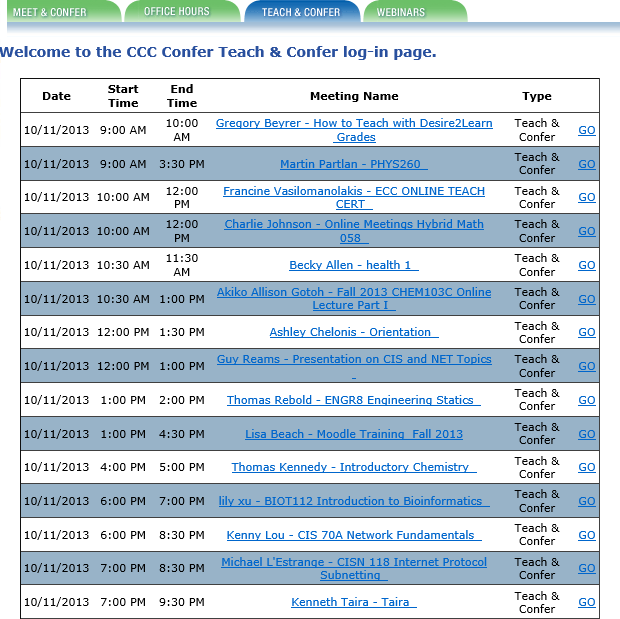
  1.  Live Instruction. In the CCCs, we call this "Teach and Confer" and literally hundreds of instructors use this tool every week to deliver live online instruction to students throughout the state (and, sometimes, the world). Classes are scheduled and links posted either within the college's Learning Course Management System or on the Confer Web site (see the schedule I captured from today's (October 11 list). As with Beth's case study example, we've had several instructors and researchers report on the effectiveness of this synchronous online instruction in reducing attrition, improving student success, and providing an effective means for students who might not otherwise be able to complete their educational goals to attend college and get their degrees. See, for example, Research on Online Spanish Classes, Case Study of Online vs. On-Campus, Grades and Attendance at Online Lectures, and Almost 95 Percent Retention.
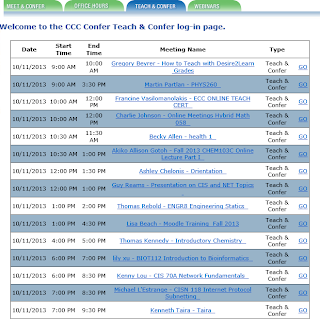
2. Meetings. With 112 colleges spread across the state of California, the California Community Colleges is a large geographical system that requires thousands of meetings every week to coordinate activities, check on progress, communicate goals, convene groups and subgroups, and simply operate as a system.Travel costs for these thousands of meetings would be prohibitive, to say nothing of the expenses incurred for meeting space, food and beverage, A/V materials and other incidentals. I've added another screen shot of some of today's (10/11) meetings, which are not atypical: a group of math instructors, IT meetings, librarian meetings, counselor training, various committees, a work group on data governance, online educators from a single college, department meetings, several task forces, student organizations, and many more. There's no question that millions of dollars every year are saved in the CCCs because these and hundreds of other groups elect to meet online instead of traveling to campus, other campuses, or to hotels or office buildings to accomplish the same goals: collaborate and get work done.
3. Recorded Content. Students who miss class or who need to review lectures or class sessions have it easy in our system if instructors record their sessions with CCC Confer. Archived sessions are converted to MP4 format and posted to the system's YouTube channel and to 3C Media Solutions, where they can be viewed, added to playlists, embedded into syllabi or lesson plans, and even downloaded. Where captioning has been requested, captions are included and can be viewed from any device. To see how recorded lectures can be used to help students and instructors, see Using Confer to Extend Face-to-Face Classes, Archives for Students Who Miss Class, Face-to-Face Students Love Archives, Confer for Lecture Capture and Video Lectures, Archives Serve Diverse Learning Styles, or Using an Archive to Extend Class Time.
4. Online Conference. Not everyone can attend every conference for a variety of reasons. Budgets are short. Other duties conflict with the time and date of the conference. Space is restricted or there may be other physical limitations. With Confer, it's easy to capture, preserve, and distribute conference presentations to both participants and to non-participants who are nonetheless interested in the subject matter. Perhaps our best known conference of the year is the Online Teaching Conference, which captures roughly a third of its presentations this way and makes them available in real time to online attendees and as recorded videos for everyone else. We've done this for several other system-wide conferences with great success, and many organizations within the system have been able to offer online conferences using similar methods.
5. Mobile Web Conferencing. Now that Blackboard Collaborate has apps for both iOS and Android devices, attendance and participation in online classes and meetings has been extended to the mobile users in our system, making it even easier to connect while on the go.
6. Virtual Office Hours. Instructors need to meet with students, and these meetings often need to occur outside of class sessions as student are engaged in their studies, assignments, or research and need guidance or feedback.Some campuses and institutions require that these office hours be held in offices that
are physically located on campus, but those policies are changing as the realization grows that travel to campus is difficult and unnecessary, and that the virtual office is often better-equipped than the average faculty member's office (to say nothing of the office-sharing or office-less adjunct faculty member). The screen at left shows my capture of today's Office Hours schedule. As I looked these up, I was surprised to see so many on a Friday, but many also on Saturday and Sunday this weekend. This points out another great advantage to virtual office hours: since they don't occur on a campus, no other staff (custodians, campus security, etc.) are required to work so that the instructor can meet with his or her students. This makes it a more flexible and affordable service for the institution.
7. Student / Parent Orientation. As online education gains in popularity, the requirement that students enrolling in an institution physically attend an orientation session is becoming increasingly unpopular and suspect. Providing an online orientation for online students makes sense, as does the popular practice in our colleges to use Confer to orient students to online classes, the virtual classroom, the library resources available online, the availability of online tutors and other support services, and to their fellow classmates. So many students become acquainted with their college experience by meeting online via Confer, and it's also true that some of them graduate and attend commencement ceremonies online via Confer!
8. Remote Guest (Speaker / Virtual Field Trip). This is another natural implementation, and we've seen it used in very creative ways. One music instructor attended an opera and allowed her class to virtually attend from her computer, including an after-performance interview with the performers. Another instructor taught her northern California Spanish classes from Costa Rica, where she introduced locals and gave virtual tours from overseas. We've seen instructors from different institutions take turns guest lecturing in each others' classes, and conduct inter-institutional debates and presentations by students separated by physical miles but connected virtually by the Confer classroom.
9. Professional Development. The CCCs have practiced online professional development for years, and it is built into our infrastructure. Nearly every organization that serves the system uses Confer to
train employees and colleagues, and the fact that training sessions are recorded allows for new employees or transfers to catch up with their colleagues quickly by viewing the sessions online. A glance at today's and future Webinars shows the diversity of this popular service: a presentation on revitalizing education, training on online research methods, a session related to legislated adult education planning requirements, training on applications to four-year institutions, an orientation to the California College Guidance Initiative, Open Educational Resource training, a library training related to integrated library systems, a Webinar on how to flip the classroom, training on Board policy for course pre-requisites, software training for specific educational applications, and sexual harassment training. The money, time, and resources saved by having these trainings online instead of at physical locations is immeasruable.
10. Virtual Help Desk. By providing an easy way to connect with experts or support people online, colleges can better support students, especially (but not necessarily exclusively) online students. Counselors, librarians, and tutors have been especially attracted to this use of CCC Confer. For a sample playlist of testimonials from some of these professionals, follow this link.

Thanks to Beth for creating the list and to the many thousands of Confer users who've shown us how to use this tool to support education. Please feel free to share your own ways to make Web conferencing work.


Friday, September 27, 2013

A Commitment to Accessibility


The Talking Communities video above (unfortunately, it isn't captioned) shows two meeting planners who realize just before their Web conferencing session that their audience will include blind and deaf participants. They speculate that the blind people will be able to hear the conversation and the deaf will be able to see the slides, but conclude that "there must be something better." Indeed!

CCC Confer and the California Community Colleges have always been committed to making technology accessible to all of our constituents, regardless of disability or the severity of impairment. When our first RFP (Request for Proposals) was released for a Web conferencing vendor in 2001, our requirement of compliance with the Section 508 Amendment to the Rehabilitation Act of 1973 eliminated all but one of the vendors then providing the service. We selected that vendor because it mattered to us that ALL users be able to access and enjoy this technology. Our current vendor conforms to Section 508 as well as to the Web Content Accessibility Guidelines (WCAG) 2.0 Priority AA (issued December 2012) and has received Gold level certification for non-visual access from the National Federation for the Blind NFB).You can find this vendor's Voluntary Product Accessibility Template (VPAT) here. (The VPAT is a standardized way in which developers can report on their compliance with Section 508 requirements.)

From the beginning, when we offered Web conferencing, we decided that the option for captions would be available at no charge to the end user. The California Community Colleges Chancellor's Office, which funds our project, has always made it possible for us to make good on that decision. Recently, in fact, we've been able to divert the costs for instruction-related captioning to the Distance Education Captioning and Transcription (DECT) project, also funded by the CCCO. All of our captioning happens in real time, and we have been able to preserve this captioned content in our recorded archives. We also provide screen reader support for the blind and visually impaired, keyboard shortcuts, built-in speech-to-text support, features for changing text size and controls, and navigation options for menus and tabs - all of which are recommended by the National Consortium on Deaf-Blindness. Our vendor provides a downloadable Web Conferencing Accessibility Guide which is extensive (86 pages) and very helpful for anyone presenting to an audience of differently-abled individuals.

I hope you as a presenter are as committed to accessibility as we at Confer are. Consider some of these suggestions to ensure that all of your students (or audience) can access your presentation:
  1. Don't assume that all of your students know how to use CCC Confer or have ever been in a Web conference before.
  2. Prior to your session, ask your students or audience if they have assistive needs and - even if no one reports any - become aware of the options available.
  3. Send files (handouts, agenda, slides, etc.) as attachments before the meeting/class session begins. You can also send them during the session (File Share), but having a backup plan is wise. If using PowerPoints, consider creating a text version.
  4. Practice in advance so you know how to share your screen, mute your participants, etc.
  5. Come early to your Confer room and pre-load your content/slides.
  6. Decide how to handle questions (chat, verbal, at a specific time?)
  7. Tell your online audience what you're doing as you do it; it will help them understand what they're seeing (or hearing or reading).
  8. Give participants the Computer Readiness link well in advance of your session so they'll know whether or not their equipment is compatible with the Confer software.
It's also important that some rules of etiquette be followed in your online sessions to maximize accessibility. Tell your students or audience:
  1. Mute phones when not speaking
  2. Find a way to take turns (I like the virtual hand-raising icon)
  3. When you're speaking, tell everyone who you are (voices sound alike, and the captions will be more useful if comments are attributed to their authors)
  4. When or if you arrive late, don't interrupt the session by introducing yourself

For more information about accessible Web conferencing options, see:

Where the Disabled are Enabled, in which Web conferencing "allows students with disabilities — as well as distance-studies students and those who just want a refresher — to access information in their own time."

How to Add Captions to Blackboard Collaborate Recordings, in case you are not a CCC Confer customer or forgot to pre-order captions.

Using Blackboard Collaborate to Provide an Accessible Environment for Individuals with a Hearing Loss, in which a 37-year veteran Deaf Educator explains why "especially important to me are the options that Blackboard Collaborate provides for offering students with a hearing loss the same equal access to information that their hearing peers enjoy."


Leaving No User Behind, in which Shannon Forte declares a commitment to "be sure that virtually anyone and everyone can fully engage and participate in your online classroom."


Friday, September 20, 2013

Say What? Why Audio is Vital to Good Online Lectures

Here's an observation: students will forgive bad video long before they'll forgive bad audio. They'll watch presentations of lectures with fuzzy slides - or even no slides! - as long as they can hear what's being said clearly and (apparently) imagine for themselves what's being shown on the screen. Reverse the situation - with stunning visuals but terrible audio - and they'll quickly give up in disgust. (Thinking back on it, I attended many a lecture from the back of the room, where I couldn't see - or be seen - much, but was perfectly able to hear what was being said and take decent notes.)

Here's a video from Mari Smith with excellent tips about online audio enhancement:


She includes here some inexpensive microphones and connectors that will even work with smartphones to bring your audio up to snuff. Other resources for recommended microphones for Webcasting can be found here.

Audio enhances learning outcomes, especially when it involves narration that explains a complex visual, formula, graphic, or video  with which students are unfamiliar. Research indicates that adding audio (as opposed to text) to this kind of material can improve learning outcomes by as much as 80 percent. Simply by adding phonetic memory to visual memory, the brain is able to process the information more efficiently. If students are trying to understand a drawing or math formula you've presented to them, adding more text - which increases the strain on their visual processing - won't help as much as explaining to them with audio (your voice), which allows for audio processing to work with visual processing to produce understanding.


Since audio is so important, you as a speaker (presenter, lecturer, etc.) should do your best to optimize the quality of the audio you're providing to your audience. Prepare your environment for any unexpected sound (noise) that will interfere with your narration. Turn off  your cell phone (muting doesn't always eliminate all the alerts your phone wants to send you). I use a sign on my door (the current one reads "GET A ROOM...") to let others know you're not to be disturbed. Ask someone to take your dog (or baby) for a while - somewhere else. As e-learning guru Ruth Clark advises: "
Avoid ear candy. Background music and environmental sounds create unnecessary cognitive load and distract from, rather than increase, learning. Indeed, music, over longer periods of time can be incredibly annoying. Note that this also applies to sounds, such as beeps or applause, that reinforce right and wrong answers. This may be appropriate in a games, but not for most online learning. Ear candy is as bad as eye candy."


Friday, June 28, 2013

Alone (or All One) Together Online: What Keeps Us Together in the Virtual Classroom

The constructivists maintain that social interaction leads to knowledge construction, higher order learning, and greater student success rates (i.e., achievement and completion). Students have to socially network in order for the neural network to do its thing and make connections between concepts and ideas. Sherry Turkle's wonderfully insightful book Alone Together is about, as she says, "how we are changed as technology offers us substitutes for connecting with each other face-to-face." The danger may be that if we use substitute (artificial) networking online, we may produce artificial learning or hamper the connections needed to enable real comprehension and mastery.

How do we build a community of learners from strangers who only meet online? Etienne Wenger prescribes course design elements that encourage interaction and reification (making things seem real). The use of real-time voice and video is one method the Confer instructor uses to deliver to students a sense of a real-time, articulate, caring, human. As Walsh et. al. reported in their study of Web conferencing learning communities, students may struggle with video and audio, but they prefer it to the alternative. "I think seeing someone on screen during the tutorial can keep you interested and makes the tutorial feel more interactive," says a Humanities student. Another student says, "I think the tutors who use this need to try and make it as interactive as possible ... [and to] input their own thoughts and ideas." Asked how the instructors could improve their use of the Web conferencing technology, students suggested:
  • "Find ways to ensure students participate in the live sessions"
  • "Develop and encourage methods for collaboration between students"
  • "Remember to use students' names to help make it a more personal experience"
McBrien and Jones cite similar observations from the students in their synchronous online learning study. "Talking through the microphone really helped me connect my thoughts, knowing that I could only express myself verbally. It also made me feel more in control of how I communicated my ideas because a large group of people weren't staring at me..." "Voting was great - great to see what everyone else in class felt - you don't always get that feedback." Their students reported these negatives in the virtual classroom:
  • Missing friends
  • Lack of support when presenting
  • Missing non-verbal gestures
One student observed that the class "needs to be planned more carefully and maybe tried the first session with all of the students in the classroom, not home."


We may be years away from taking these general suggestions and translating them into practical course design for the synchronous virtual classroom. As Mia Lobel et. al.  observe: "There is virtually no data describing how existing successful pedagogies, which are predicated on real-time interactive immediacy and skill practice, could be adapted to online learning environments. Much discussion and exploration is needed concerning the delivery of human relations skills online, when the pedagogy is based on group interaction, specifically active experiencing, concrete observation, abstract conceptualization and active practice and the content design is predicated on theories of group development, and observational and facilitation skills which necessitate participation and interaction."


Friday, March 1, 2013

Live Online Events: Keys to Successful Management

It sounds easy: let's all get together at noon and have a presentation from one of our speakers. We'll look at a few slides, maybe watch a video, take questions, and discuss the whole thing together. Maybe we can even poll the members to see what they think about the key issues. Let's plan to be through in an hour, but I'd like some way to record the proceedings so anyone who can't make it can review later. I'd like you to facilitate, okay?

Oh, did I mention we'd be online?

Sooner or later, if it hasn't happened yet, you'll be asked to do something like this. Live online is a fact of modern collaboration, and it's a great maximizer of time and resources, especially when managed properly. My advice to get the maximum return for these events is to invest in preparation time so that everything goes as you'd like it to go.

Protocols. If you plan to archive (record) the event, it's standard practice to inform live participants of the fact. You can do this verbally or you can prepare a slide in advance that "warns" them that the event is being recorded. This gives them the opportunity to participate accordingly. Similarly, if the event is being captioned, it's a good idea to show participants how to open and close the captioning window, along with some instructions about how to make adjustments to font, size, etc. Letting participants know how and when - or if - their questions can be asked is also important. These standard protocols are generally called "housecleaning" tasks and should occur prior to the presentation and before the "record" button is pressed.

Publicity. At CCC Confer, we send e-mails to constituents announcing Webinars well in advance. We also use our Facebook page, the TechEdge newsletter, and listservs to publicize these events. (An example of an e-mail Webinar announcement is included.) If it's possible to include a calendar link that will automatically populate an online (e.g. Outlook) calendar and include the sign-in details, you'll be better assured that your audience will remember to attend and know how to log in when they need to.

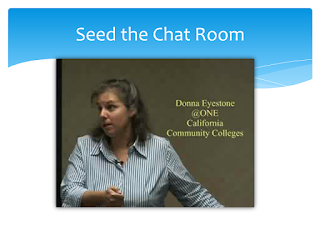
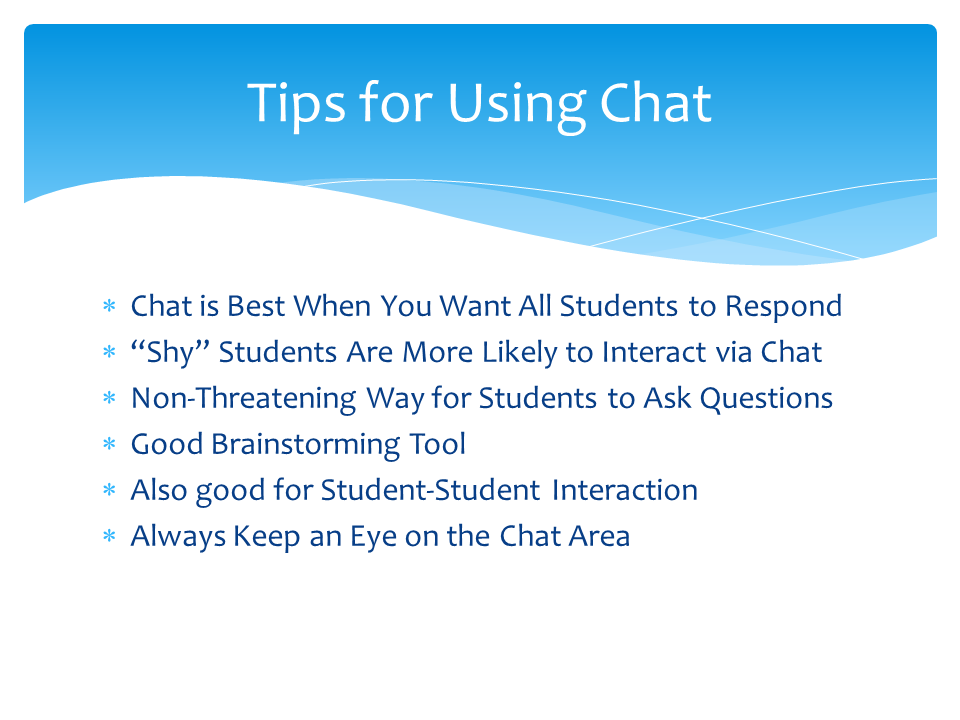
Prompts. I've noticed that the best facilitators always seem to ask the right questions of our Webinar presenters and are able to solicit audience participation precisely when it's appropriate. After discussing their techniques with them, I learned that their "spontaneity" is planned: they spend time before the event thinking up the questions they will ask and planning how to stimulate audience participation. They keep a text document handy with chat "prompts" which they copy and paste into the dialogue at appropriate times so that there is always something to interest the online participants. They call this "seeding the chat box."

Pre-Loads. If the presenter wants to show a video, the file has to be pre-loaded into the multimedia library to avoid delays during the online presentation. Similarly, large files, if they are to be shared with the audience, should be pre-loaded so that no time is lost waiting for them to be delivered. In the synchronous online environment, even the slightest delay - a few seconds - can seem to last much longer.

Practice Run. Although it's not always possible to get a guest speaker to practice with you before an event, it's very helpful. Even if they can't make it, though, you'll benefit from pre-loading and testing the software, slides, content, and timing. This allows you and/or the presenter to make adjustments beforehand and to anticipate audience reactions to the screens as they appear.

Every event has a beginning and an end, and generally there are other sequential points in the event where you want things to happen. You won't be able to determine these accurately if you can't tell when the slides will be finished, how long the video will last, or how fast (or slow) the presenter will be talking. Practicing with him or her makes it possible for you to plan the question-answer period properly and determine when breaks or interludes can be inserted. It avoids the irritating sense that you've had to speed up the presentation or cut off feedback because of the clock.


Friday, December 7, 2012

Best Practices for Synchronous Online Instruction: An Update


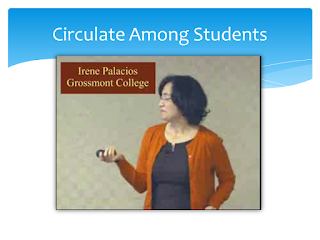
Slideshare recently contacted me to say that my presentation on best practices for synchronous e-learning had attracted more than 1,000 viewers. I know they meant well, but - instead of making me happy - I felt terrible! The presentation used a ton of embedded videos to make its points, and when I sent the slides to the site, none of the videos were included.

So here's my correction for those who may still be interested: the slides and the videos, together again. (To view the videos, click on the relevant images.)


Click to view


Click to view

Click to view

Click to view


Get Twitter Fan Box Widget